MDA - Mango Desktop App , is an application that automatically starts when you turn on your computer and then runs in the background. It records a persons activity on the computer - what applications they use, which files they open and how much time they spend on them. After connecting to Mango, this data is sent to Mango at regular intervals, where it is clearly stored in activities and can then be viewed in the timeline of a specific user.
From a managers perspective, this is a handy tool for understanding what your team is working on, and with MDA you can better optimize work processes and check the quality of work and the commitment of individual team members.
For example, as a self-employed person, MDA will help you monitor time on a specific project, so you can easily count hours worked without having to keep complicated time records.
You can download the Mango Desktop App (MDA) for free here: https://cdn.crmango.com/files/mda/MDA_setup.zip and you can find the key to connect Mango to MDA in the Settings -> My Settings -> Connection to Mango Desktop App section. In this section, as you can see in the picture below, you can also download the application itself, and you can also find your connection key here. What is also important is the Automatic Verification box. It is up to each user and their settings whether they want to have this box checked or not. This means that all activities that MDA records and sends to Mango should be automatically verified, which means that your manager, for example, can view and display them, or these activities will be collected in Mango, but only after verification will they be displayed to other users. This means that you will work, at the end of the day you open Mango, go to the activities section and there you verify all the activities that you want to be displayed in your workday report. You can simply delete those that you do not want to be verified.

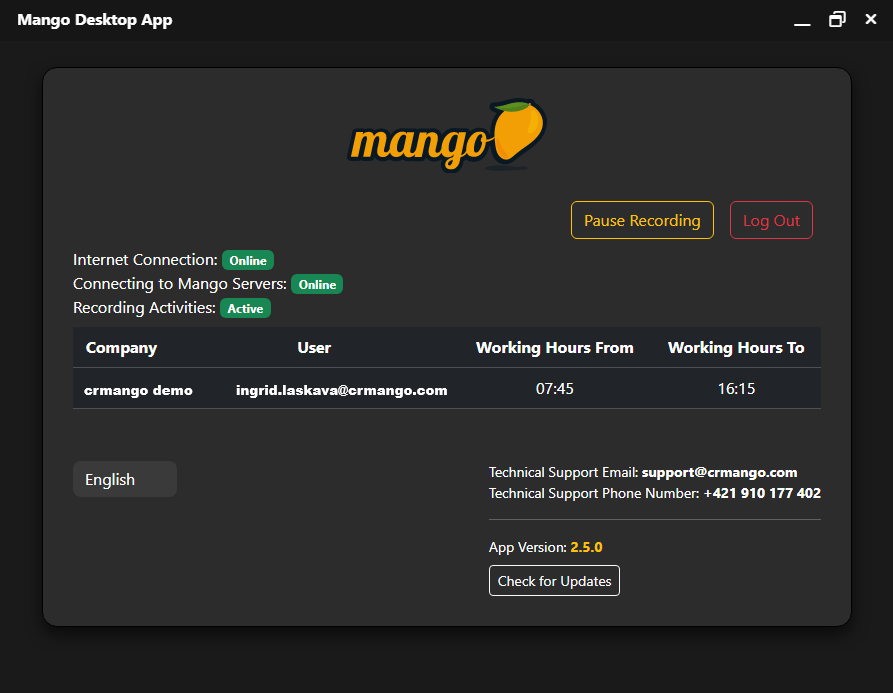
Once installed on the computer, MDA simply runs in the background. As you can see in the image below, there is also an option to pause MDA . This simply means that MDA stops recording, the user can take care of some private matter on the computer, for example, and then restart MDA.
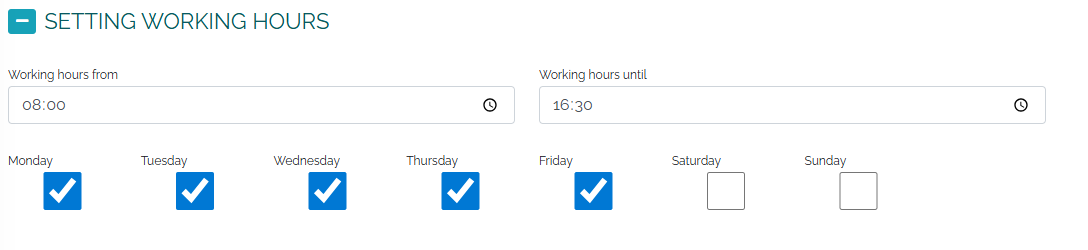
Another important thing for MDA is setting working hours . This means that if we work from 8:00 to 16:30, we set working hours in the personal settings of CRM Mango and according to this setting, MDA will automatically start and stop in the background of your computer within the set working hours.
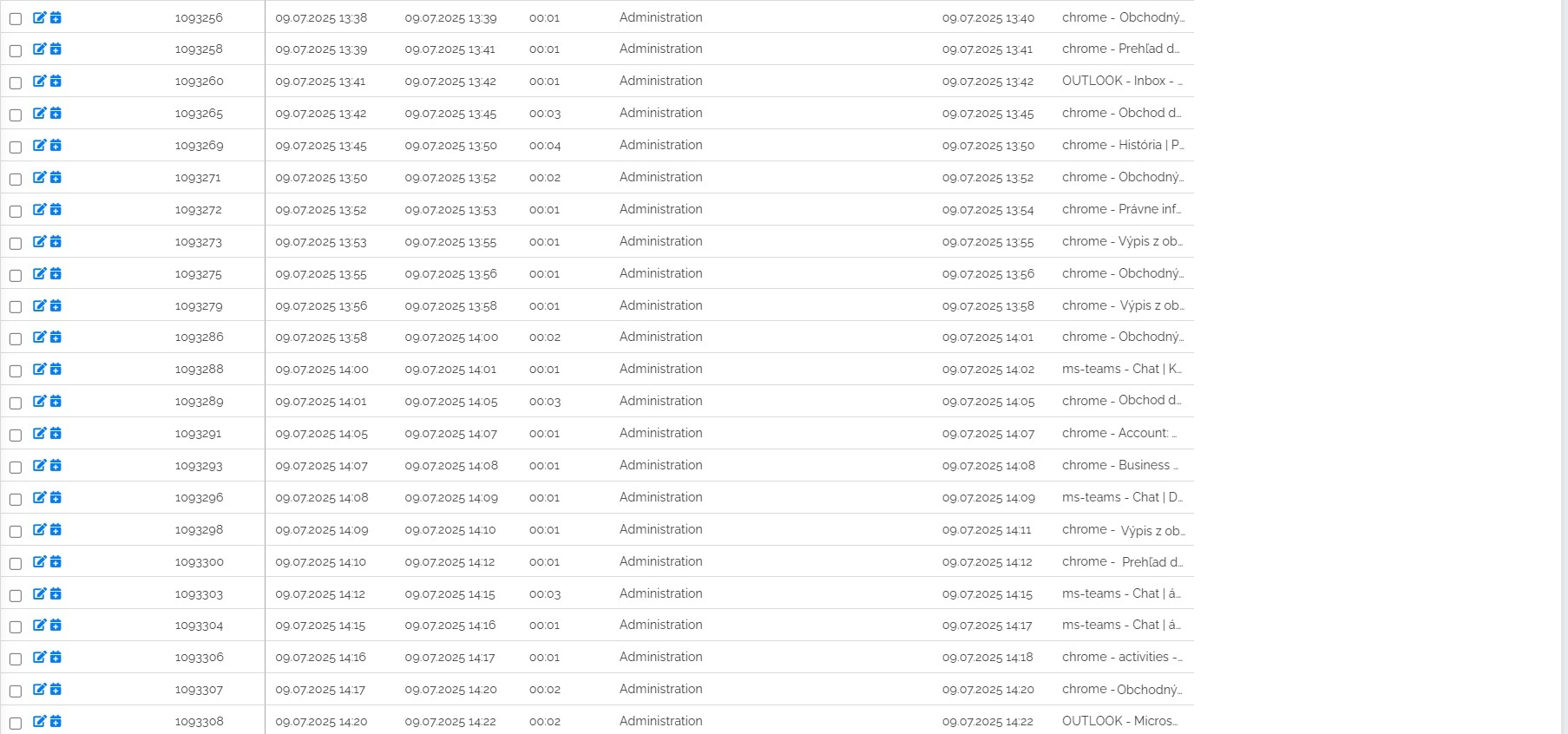
Your computer activity is reflected in activities as shown in the image below. You may or may not verify your activities.
You can then create a clear report from the verified activities in a timeline with one click , including a graphical display of individual activities.
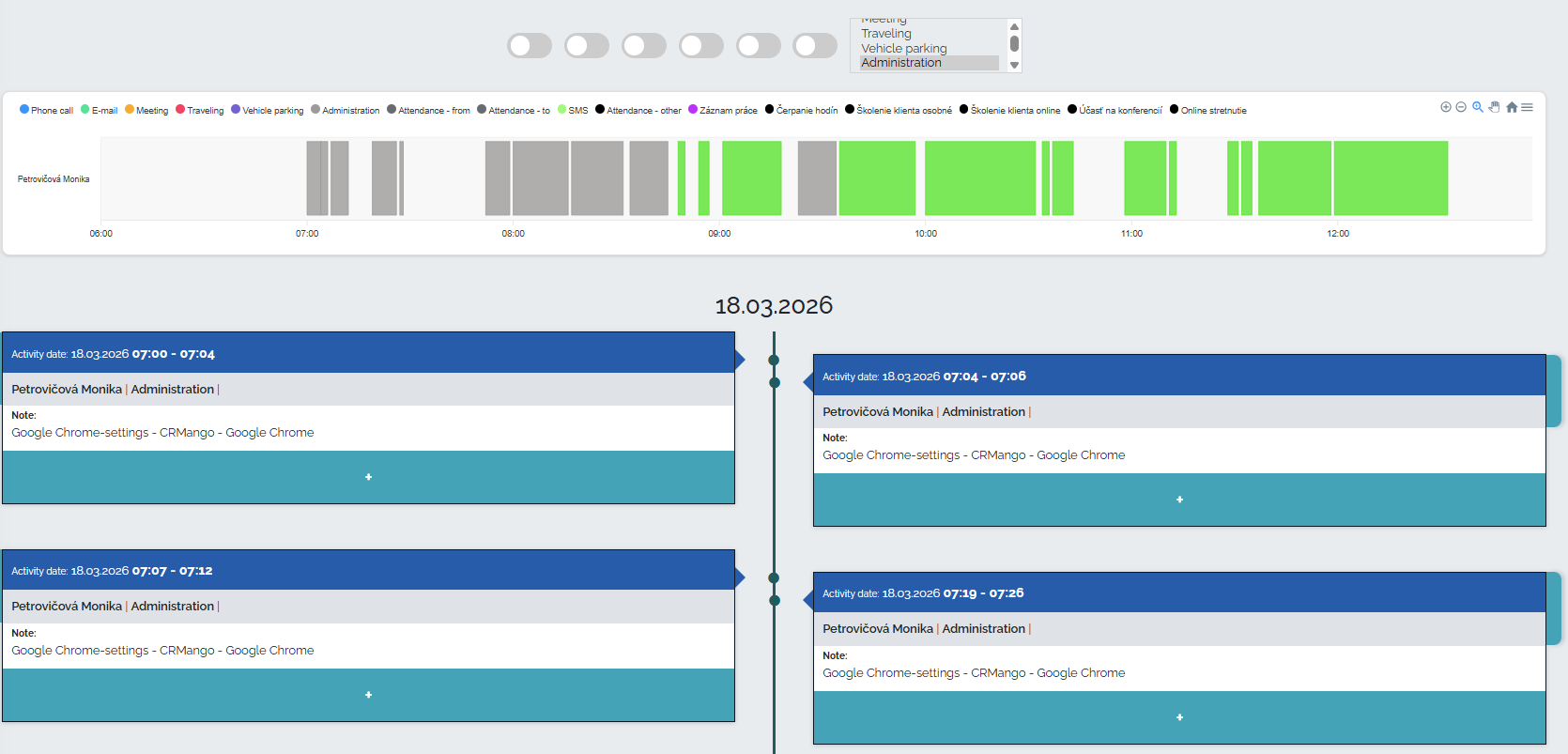
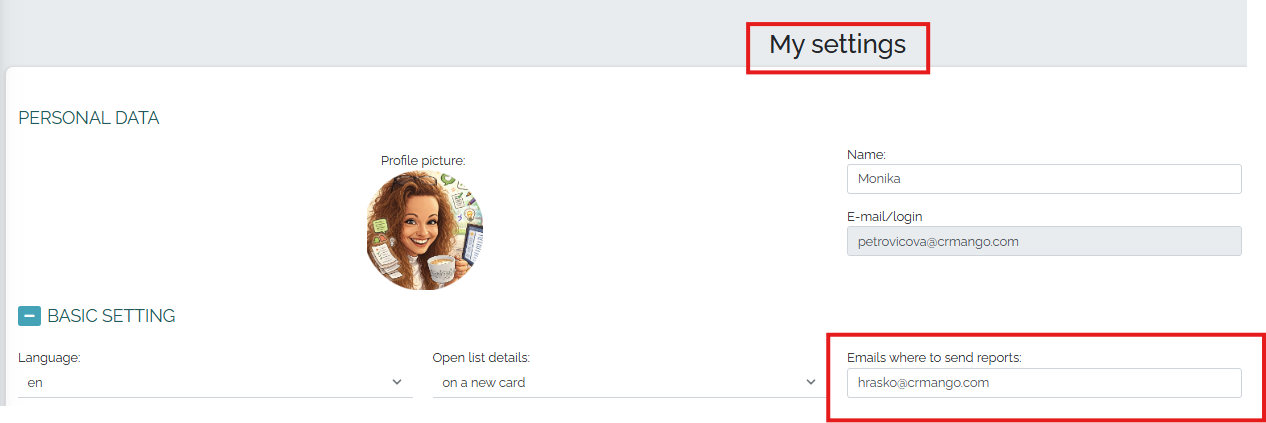
You can send this report, along with a graphical representation of the timeline, directly to the company management via email directly from CRM Mango. Just click the send report button. You can choose where the report will be sent in your personal settings. You can also select multiple emails at once, just separate them with a comma.